
When you’re trading, screen real estate is everything. The more information you can fit into a single glance, the faster you can make decisions. One of the easiest wins is condensing long, space‑hogging numbers—especially volume. Instead of displaying a seven‑digit value like 7,200,000, you can compress it to something like 1.2 (representing millions) and apply color coding to highlight liquidity levels.
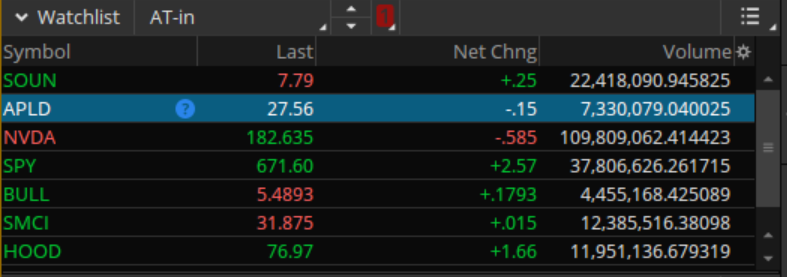
End result
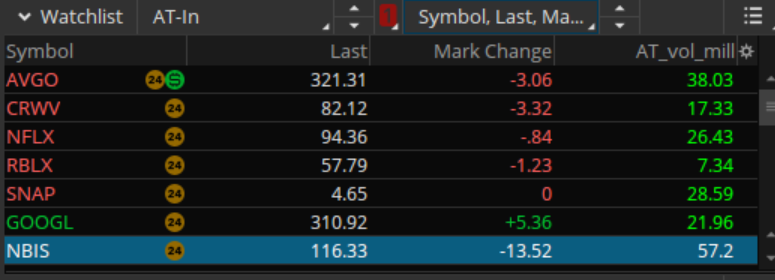
To do this, we’ll create a custom ThinkScript and attach it to a watchlist column inside Thinkorswim.
Step 1 — Open the Customize Columns Menu
On the right side of your watchlist gadget, click the small gear icon and select Customize….
This opens the menu where you can add, remove, or modify watchlist columns.
Step 2 — Add a Custom Column
At the top of the “Lookup a column” search field, type “custom”.
You’ll see items like Custom 1, Custom 2, etc.
Select any available custom slot and click Add → to move it into your active column list.
With that custom item highlighted, click the script icon (<>).
This opens the ThinkScript editor. It defaults to the Condition Wizard, so switch to the ThinkScript Editor tab.
Step 3 — Paste Your ThinkScript
Delete any existing content and paste your custom script into the editor.
(I’ll include the final script at the end of this article.)
Step 4 — Rename Your Column
At the top of the editor, rename the column from something generic like Custom 10 to something meaningful—e.g., my_vol.
Click OK to save.
Note: Thinkorswim does not allow renaming after saving.
If you need to change the name later, you’ll have to delete the custom column and recreate it.
Step 5 — Add Your New Column to the Watchlist
Back in the Customize window, search for your new column name (e.g., my_vol) and add it to your watchlist.
You now have a compact, color‑coded volume display that saves horizontal space and makes liquidity easier to read at a glance.
Here’s a YouTube video that walks through the steps to customize your watchlist.
Final Script
# Compact Volume Display with Working Color Coding

def vol = volume;

# Convert to millions for large values
def volM = Round(vol / 1000000, 2);

# Determine display value
def displayVol = if vol >= 1000000 then volM else vol;

AddLabel(
    yes,
    displayVol,
    if vol > 5000000 then Color.GREEN
    else if vol < 1000000 then Color.RED
    else if vol < 2000000 then Color.YELLOW
    else Color.WHITE
);